
Is that blacked-out document really safe?
A black rectangle may not remove the text inside a PDF
A name that looks blacked out may still be readable by copying and pasting. The original article describes recurring Japanese disclosure incidents from 2022 onward. We explain how this can happen and how to reduce the risk, without specialist jargon.
“It is blacked out, so no one can read it.” That assumption can fail. The original article describes documents published in 2025 where names remained copyable beneath the black masking, with affected files left available for a substantial period. The problem lies in the file’s contents, not simply its appearance.
The essential distinction
Covering text and removing it are different operations. Putting a black rectangle over a page can leave the original text inside the file. A person may not see it on screen, but software may still be able to read it.
Try it for yourself
The example below looks like a redacted document. Select “Select and read the text” to reveal the information available to software. One click demonstrates the same underlying failure mode.
This is a fictional illustration, unrelated to actual people or addresses.
Examples described in the original article
The original Japanese article includes the following anonymized incident examples. They illustrate recurring failure modes rather than establishing findings about identified organizations; the page does not supply individual source links for these cases. The issue can affect ordinary workflows, not only unusually careless teams.
Why it happens: three misconceptions
A PDF cannot be edited, so converting to PDF makes it safe
PDF is often less convenient to edit, but it does not automatically turn text into an image. When Word or Excel files are exported to PDF, their text usually remains text. That is why it can be searched and copied.
The correction: converting to PDF does not remove text. Preserving usable text is ordinarily one of PDF’s advantages.
A black rectangle makes the information invisible, so it is safe
A filled shape, highlighting or a background color may simply sit on top of the content. The text underneath is not necessarily removed. Selecting and copying it, or using a text-extraction tool, can reveal it, as the demonstration above illustrates.
The correction: remove the sensitive content itself, rather than merely covering it.
A second visual check will catch every problem
Visual review can identify areas someone forgot to cover, but cannot reliably detect text that remains beneath an apparently correct black rectangle. Adding more reviewers does not solve that limitation if they all inspect only the appearance.
The correction: inspect the exported file’s recoverable content as well as its appearance.
Self-check: are your workplace’s redactions safe?
Select the statements that apply. This self-check does not send your selections to a server.
Eight questions about public-document redaction
Three steps for effective redaction
- Use a dedicated redaction feature. Apply an operation that removes sensitive page content, rather than adding a shape over it. A PDF editor’s Redact function is distinct from its drawing tools. Apply and save the redactions, and use the tool’s sanitization features where appropriate.
- If using image output, create a new PDF from the correctly redacted page images. This can avoid carrying the original text layer into the output. The concealed pixels must actually be replaced, and the new file must not retain the original pages, attachments or an OCR layer containing the sensitive text. Image conversion alone is not a universal guarantee.
- Check the exported file for recoverable information. Before publication, use a text-extraction tool or copy all text into a text editor. If a supposedly removed name appears, the redaction has failed. A blank result is useful evidence, but not sufficient by itself: also inspect the rendered pages and hidden content such as metadata, layers and attachments. Make these checks part of the publication procedure.
Even a correct manual process has limits
Knowing the method does not solve the volume problem. The original article cites Japan’s FY2024 administrative information-disclosure report: 215,425 requests, up 9,765 from the previous year. It reports that 96.6% arrived at a counter or by post, reflecting workflows still heavily based on paper and PDFs. The cited Japanese statistical report is linked below.
215,425
FY2024 disclosure requests in Japan, as cited in the original article; up 9,765 year on year
96.6%
Submitted at a counter or by post; the cited online share is 3.4%
91.5%
Decisions within the statutory 30-day period; the cited report lists 548 cases taking over one year
2,381
Administrative review requests; the cited figure includes 1,041 challenges to non-disclosure decisions
Staff review every page, find names, addresses, contact details and dates, redact them, and check the result. An omission can expose personal information, making the task demanding and time-consuming. They also need to explain afterward why an item was withheld. At this scale, “be more careful” is not a complete solution.
Why we support the work without sending documents outside
AI services can help identify redaction candidates, and many process documents in the cloud. Japan’s Digital Agency guidelines revised in June 2026 state that, in principle, information requiring confidentiality cannot be handled by cloud generative AI used merely by accepting standard terms. The original article also cites the Ministry of Internal Affairs and Communications’ local-government security guidance. Applicable procurement arrangements, classifications and organizational rules must be checked.
A redaction workflow necessarily sees the very information that must not be disclosed. Sending it outside for efficiency therefore requires a deliberate security and governance decision.
Generative AI prepares a redaction draft for review
This redaction-support application runs on Sovereign GaiXer. From OCR and AI candidate assessment to PDF generation, the local workflow runs within the compact appliance. In its closed-network configuration, the document is not sent to an external AI service.
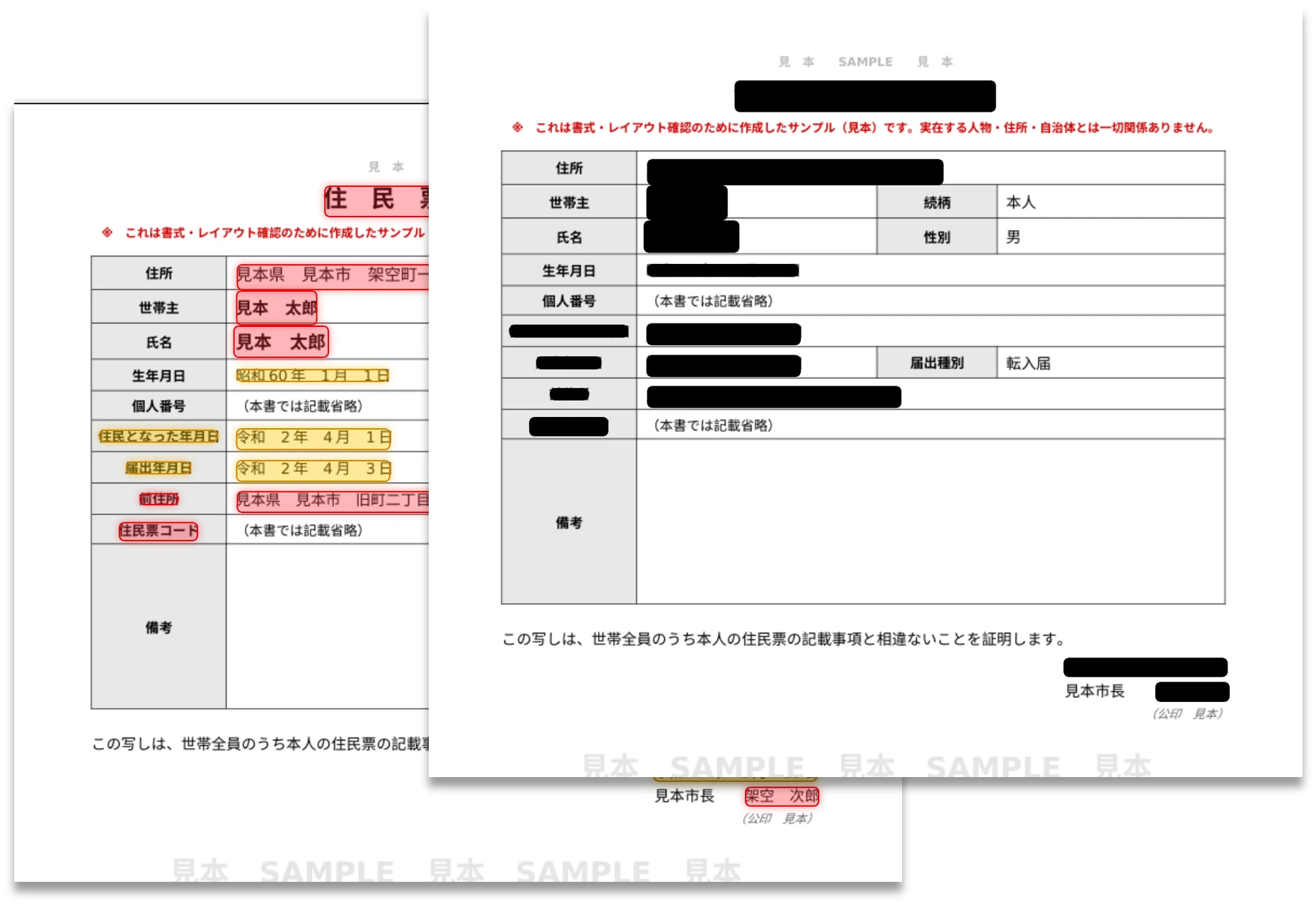
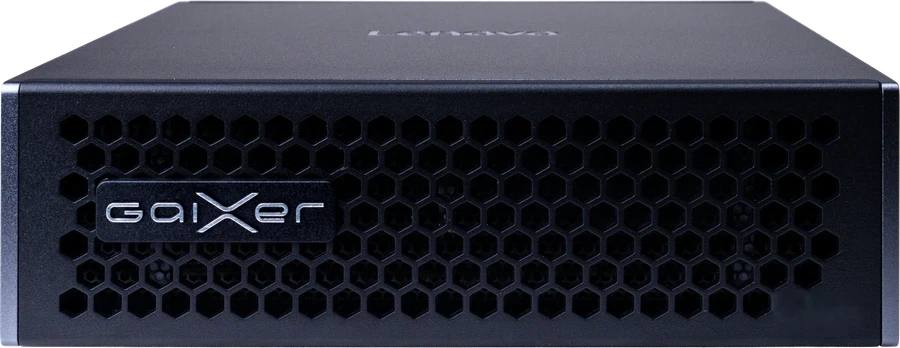
The application rebuilds pages as images so the original text layer is not carried into the output
This application is under development. A working demonstration exists, and remaining work before production use is being assessed. Contact us to discuss a demonstration and the intended deployment.
Comparing three approaches
| Item | Manual work | Cloud AI | AI within your appliance |
|---|---|---|---|
| Work time | Visual review of every page; effort grows with volume | Candidate suggestions can reduce effort | Candidate suggestions can reduce effort |
| Document destination | Remains within the organization | Sent to an external provider | Remains on the organization’s appliance |
| Confidential information | Subject to internal controls | Subject to applicable guidelines and service arrangements | Subject to internal controls and configuration |
| Processing records | May require a separate manual process | Depends on the service | Automatic operation logs |
| Cost model | Staff time | Subscription or usage charges | Appliance purchase; local usage has no metered charge, with operating and application terms to confirm |
Frequently asked questions
Can the AI miss personal information?
Yes. That is why this application does not leave the final deletion decision to AI. AI identifies candidates; a staff member decides on screen what to redact. The initial policy includes names and dates among the candidates and flags uncertain items to reduce missed information.
If AI reads the document, does the information leave our organization?
The demonstrated application performs OCR, AI assessment and PDF generation within the Sovereign GaiXer appliance. After required initial setup, this local workflow can run in a closed network without continuous internet access.
How can we check that the text has actually been removed?
Run a text-extraction tool against the exported PDF, or select all, copy and paste into a text editor. This can reveal hidden text. Our measured example yielded zero extracted characters. A blank result from one tool is not a complete security proof: also inspect attachments, metadata, layers and the visible image, and confirm that no OCR text was added back.
I am concerned about documents we have already published online.
Start by copying all text from the published file into a text editor and checking the output. If information intended to be withheld appears, promptly remove public access and follow your incident-response process. Assess search-result or cached-copy removal where available, retain evidence and determine any notification obligations. Replacing the file alone may not remove copies already obtained.
Where should we start if we are considering this application?
A demonstration on the actual device is a good starting point. Bring an appropriate sample resembling your real document format so you can inspect the suggested redactions and the exported PDF.
Three points to remember
- Covering text and removing it are different operations. Adding a shape can leave the underlying text in the file.
- Check the actual exported content, as well as its appearance. Include copy-and-paste or text extraction in the pre-publication checks, alongside review of hidden content and rendered pages.
- AI can help with volume, but it handles the information you intend to withhold. Where processing takes place deserves as much attention as the application’s features.
Sources
External source links open in a new tab.
Policy and statistics
- Ministry of Internal Affairs and Communications, Implementation of the Administrative Information Disclosure Act in FY2024 (published September 2025; Japanese)
- Digital Agency, DS-920: Guidelines for Procurement and Use of Generative AI for the Evolution and Innovation of Public Administration (June 12, 2026; Japanese)
- Ministry of Internal Affairs and Communications, Guidelines for Local Government Information Security Policies (FY2026 edition; Japanese)